Answer
Nov 16, 2025 - 12:00 AM
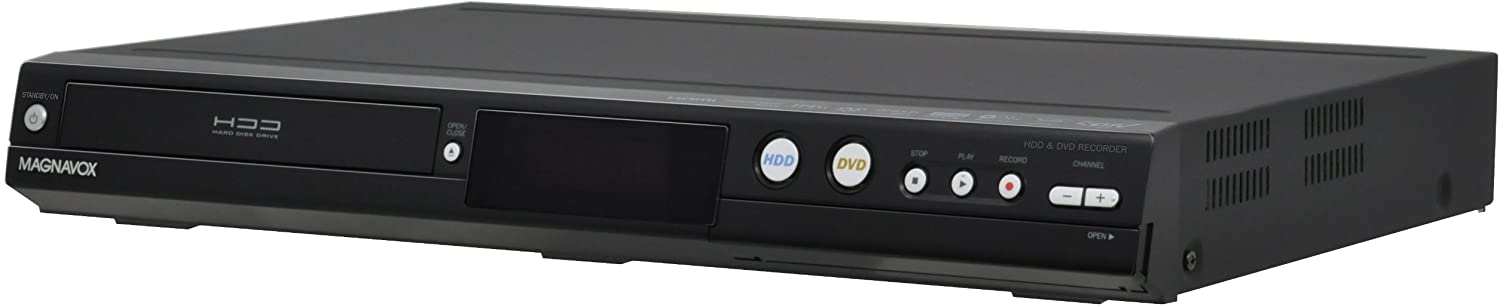
Yes, you can connect a VCR or DVD player to the Magnavox MDR535H/F7 to record content onto its hard drive. The MDR535H/F7 is equipped with both front and rear audio/video (A/V) input jacks, allowing you to connect external devices like VCRs or DVD players.
To set up the connection and record:
-
Connect the Devices:
-
Use RCA composite cables (yellow for video, red and white for audio) to connect the A/V output jacks of your VCR or DVD player to the A/V input jacks on the MDR535H/F7.
-
You can choose to use either the front or rear input jacks based on your preference and setup.
-
-
Select the Input Source:
-
Power on the MDR535H/F7 and press the [INPUT SELECT] button on the remote control to choose the appropriate input source (Front or Rear) corresponding to where you connected your external device.
-
-
Prepare for Recording:
-
Start playback on your VCR or DVD player to the point where you want to begin recording.
-
On the MDR535H/F7, press the [RECORD] button to start recording the content onto the hard drive.
-
To stop recording, press the [STOP] button.
-
Important Considerations:
-
Copy Protection: Be aware that some commercial VHS tapes and DVDs may have copy protection mechanisms that prevent or restrict recording. Ensure you have the rights to duplicate any content you record.
-
Recording Quality and Storage: The MDR535H/F7 offers different recording modes that affect video quality and the amount of content you can store. Choose the mode that best suits your needs.
-
User Manual Reference: For detailed instructions and additional information, refer to the MDR535H/F7 owner's manual.