Answer
Nov 02, 2025 - 12:00 AM
✅ Scanning Locally to a MacBook Air
Compatible Operating Systems:
-
Windows:
-
Windows XP (32-bit)
-
Windows Vista (32-bit and 64-bit)
-
Windows 7 (32-bit and 64-bit)
-
Windows 8/8.1 (may require driver updates)
-
Windows 10 (limited support, requires legacy driver installation)
-
Compatibility with Newer macOS Versions
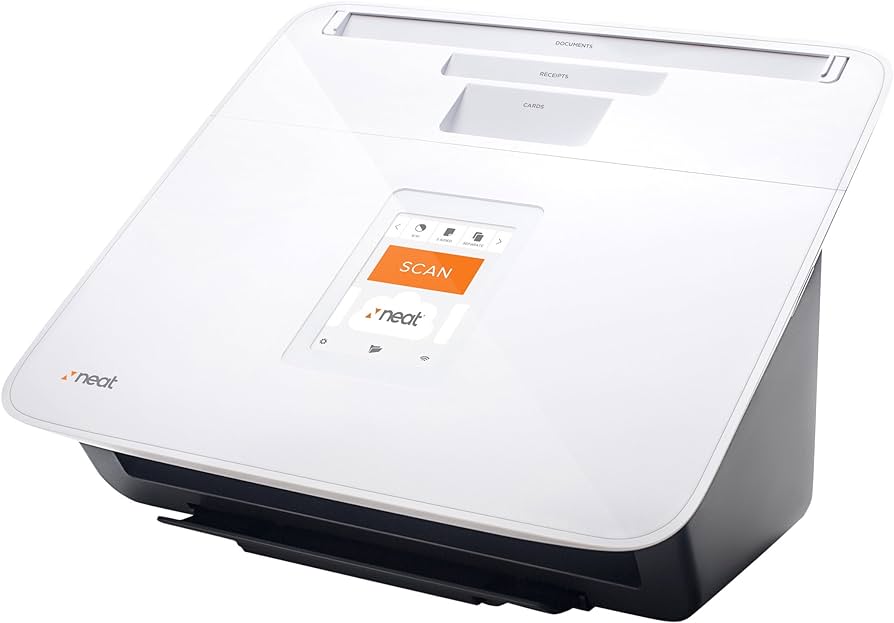
The Neat NC-1000 (also known as NeatConnect) supports scanning directly to a Mac via USB or Wi-Fi. To scan locally:
-
Install the Neat Scanner Driver: Download and install the appropriate driver for your scanner model from Neat's official support page.
-
Use Apple's Image Capture: macOS includes the Image Capture application, which allows you to scan documents directly to your Mac without additional software. After installing the Neat driver, open Image Capture, select your scanner from the list of devices, and initiate scanning.
-
Set Scan Destination on the Scanner: For NeatConnect users, ensure the scanner is set to scan to "Computer" instead of "Cloud." On the scanner's touchscreen, swipe until you see "Computer" as the destination.
Neat discontinued support for its desktop software in 2017, focusing on cloud-based solutions. As a result, compatibility with newer macOS versions may be limited:
-
macOS Mojave (10.14) and Earlier: The Neat scanner driver is compatible, allowing for local scanning.
-
macOS Catalina (10.15) and Later: Users have reported issues with scanner functionality due to the lack of updated drivers. Some have found workarounds, such as setting up a local FTP server to receive scans from the NeatConnect scanner.